Data migration
How to create a work item in DevOps Center
A simple step-by-step guide
Written by
Prodly Marketing
Published on
Updated on
Instructions
It’s easy to create a work item in DevOps Center:
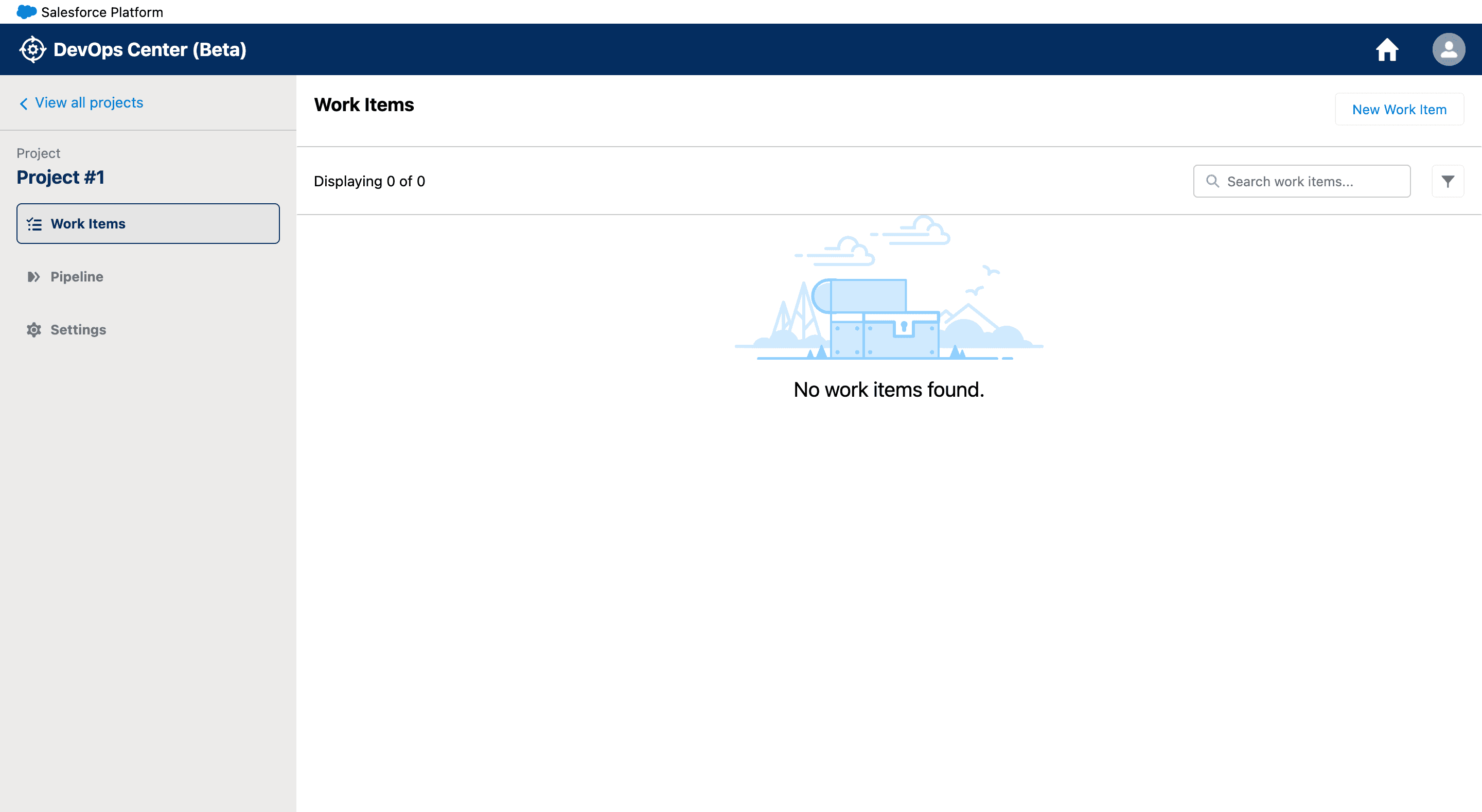
From the Projects page, click the name of the project for which you’re creating a work item. This will open the project.
Click “New Work Item.”
Enter a descriptive subject.
Use the Description field to provide information about the scope of work, acceptance criteria, and so on.
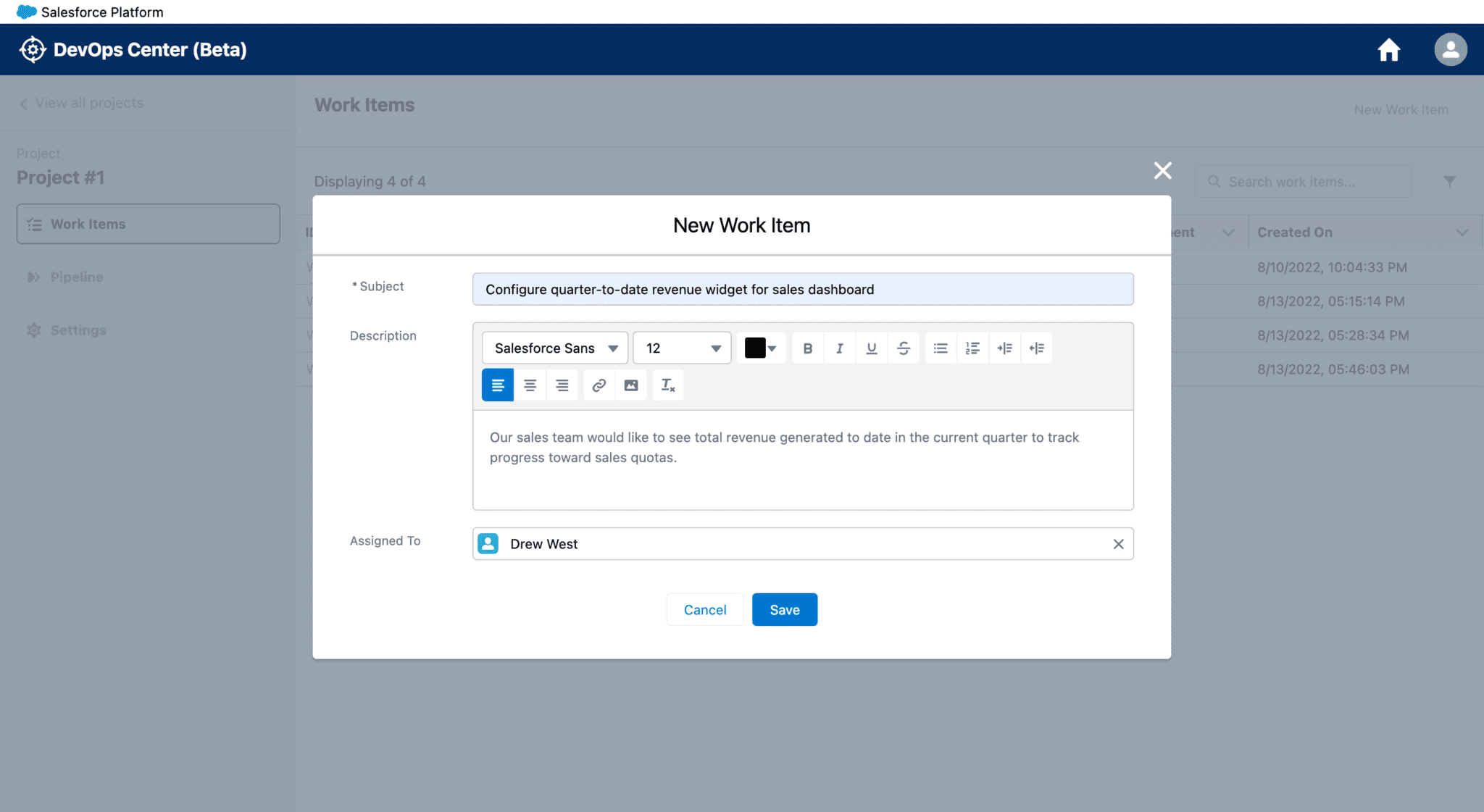
5 (Optional) Assign the work item to a team member.6 Click “Save.” The work item is now visible in the Work Items tab of the project.

7 Repeat this procedure as needed to assign and track project work.
Who can create a work item in DevOps Center?
Anyone assigned the DevOps Center permission set can create work items and assign them to other DevOps Center users.This approach enables anyone who finds a bug to report it and anyone who has an idea for an enhancement to suggest it to the rest of the team. It’s part of the new workflow Salesforce enables with DevOps Center.
How to edit work item details
When do you edit work item details in DevOps Center? When you need to update them because something has changed—for example, the acceptance criteria. Without these updates, you can’t provide sufficient value to your team. For instance, if you want to start work on an unassigned work item, assign it to yourself so the rest of the team knows you’re working on it. Or if you identify new acceptance criteria, edit the description to make sure the assigned team member is aware of the change. Here’s how to edit work item details in DevOps Center:
From the Projects page, click the name of the appropriate project. This opens the Work Items tab, where you can see a list of everything that your team is currently working on.
Locate the work item you want to edit and click its ID to open it. It will open in the Changes tab.
Edit the fields as needed.
You might also like: Streamline your Salesforce task management




© 2026 Prodly. All rights reserved.